
Google Forms Signature: How to Add One in 2026
Add a legally sound Google Forms signature with an add-on. Compare the workarounds, follow the setup steps, and get signed PDFs saved to Google Drive.

Tired of nonsense pricing of DocuSign?
Start taking digital signatures with BoloSign and save money.
Google Forms has no native signature field, so the reliable way to collect a signature is an add-on that turns each response into a signed PDF. The popular advice to just add a typed name field skips the harder question. If someone disputes that form later, can you prove who signed it, what they agreed to, and that the record wasn't changed?
Short Answer, Comparison and Choosing a Channel
Google Forms has no native signature question type, so you can't add a true Google Forms signature field from the standard question list. The dependable route is a signature add-on for Google Forms that captures the signature inside the form and turns each response into a signed PDF.
The typed name trap is where most admins go wrong. A typed name proves a name was typed. It doesn't prove who typed it, whether that person intended to sign, or whether the answers were altered afterward. Google's eSignature guidance describes eSignatures as legally binding in many regions but frames compliance as dependent on applicable laws and document context, not as a universal guarantee.
Signature Methods in Google Forms Compared
| Method | Legally strong? | Audit trail? | Signed PDF? | Effort |
|---|---|---|---|---|
| Typed name | Weak; proves a name was typed, not who typed it | No | No | Minimal |
| Consent checkbox | Weak as a signature; useful as an acknowledgment | Timestamp only | No | Minimal |
| Scanned signature image upload | Moderate; no proof of who uploaded it | No | No; the image sits apart from the form answers | High: print, sign, scan, upload |
| Signature add-on | Strong when paired with signer identity and audit records | Yes | Yes | Low after setup |
I'd set the risk tier before you build anything. A room-use acknowledgment or RSVP can live with a checkbox. Employment letters, medical consents, liability waivers, and contracts need signer identity, timestamps, and a generated PDF.
Risk rule: If you'd be upset to lose an argument about this form, don't collect it with a free-text name field.
Channel follows volume. Use the form when many people sign the same document. Use Gmail for one document to one or two people, which is where a Gmail extension for signature requests fits. Use a reusable template when the same document goes out repeatedly. For respondents signing on phones, review the phone signing options before you publish, because a drawing pad that fails on a small screen will stall completions.
How to Add a Signature to Google Forms with the Add-on
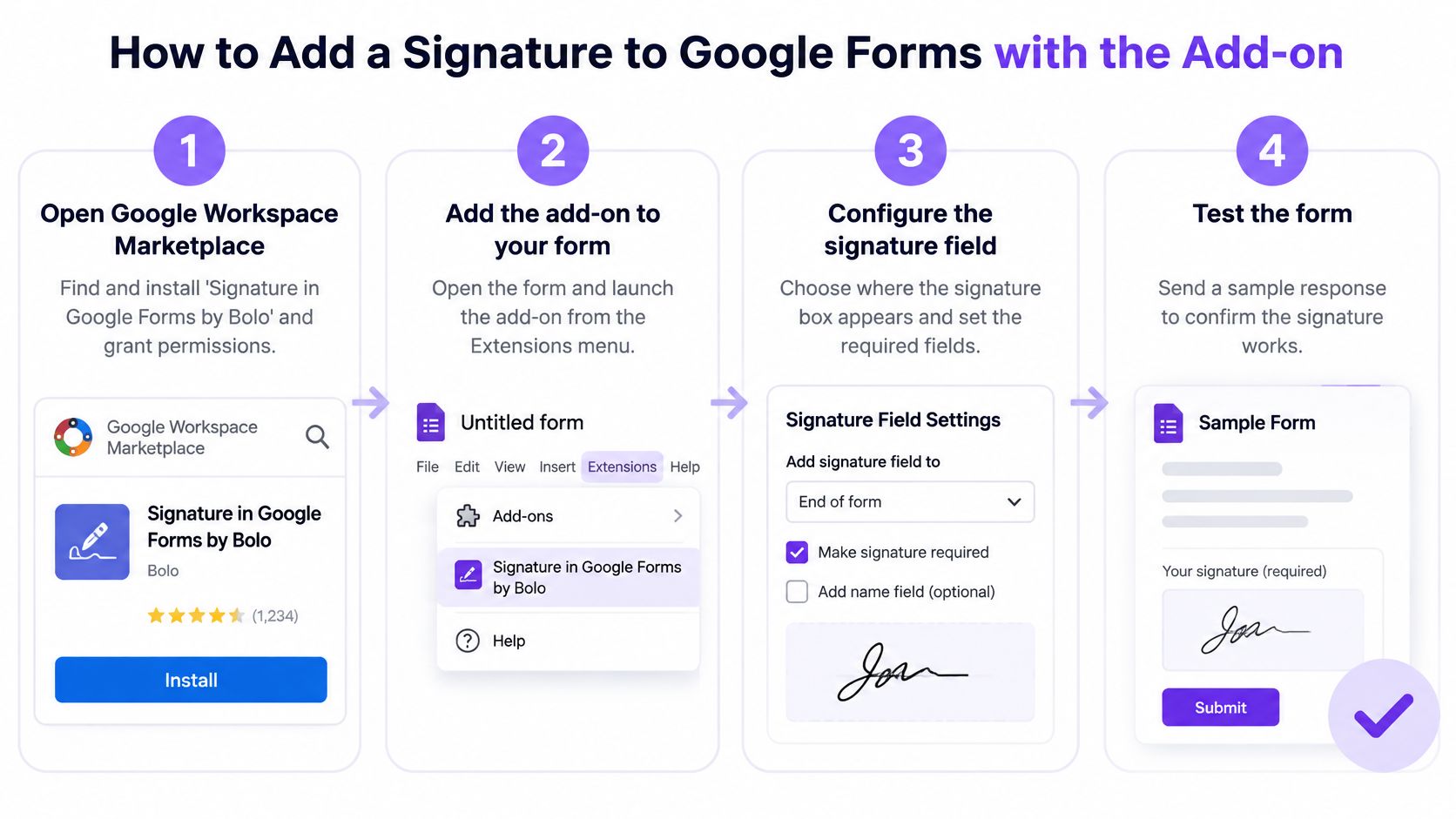
This workflow uses Signature in Google Forms by Bolo from Google Workspace Marketplace. Respondents draw or type their signature on any device, and each submission generates a signed PDF saved to Google Drive. Eight steps take a blank form to a signature-ready one.
- Install the add-on. Open Google Workspace Marketplace, install Signature in Google Forms by Bolo, and grant the permissions it requests so it can write the signature field and save output files.
- Launch it inside your form. Open the form in edit mode, select the add-on icon, choose the signature tool, and select Add eSignature, following the documented workflow on the Google Workspace Marketplace listing.
- Complete the setup wizard. Name the field clearly, such as Parent or Guardian Signature, so respondents know whose signature you're asking for.
- Add identity fields beside it. Require legal name, email, and date fields next to the signature so the finished record shows who signed and when. Turn on response validation for the email field so a typo can't slip through as a bad address.
- Put consent text above the signature. Place the agreement and consent to electronic records before the signature field so the signer reads and accepts the terms first.
- Add a second field when two people sign. A student and parent, or an incident reporter and witness, each get their own signature field rather than sharing one box.
- Test with three personas. Submit as an authenticated staff member, an external signer, and a phone user, then confirm each test produces the expected signer details and PDF.
- Share the form. Send the link, or embed the form on your site so respondents submit and sign without leaving the page. Signing works on a phone without an app download, printing, or scanning.
Check the consent wording and field order before sharing, because the signature is only as strong as the text it sits under.
Signature fields are added through the form editor, so hundreds of signatures can be managed without creating individual documents. That's the difference between a form workflow and sending 200 separate PDFs. The same product family includes a Document Signing API, a WordPress integration, and an eSignature for Google Forms solution for teams that later need to trigger signing from another system.
If your form feeds a review committee rather than a simple approval, the same upfront clarity helps. The submission guidance for scientific program committees from Planstone is a useful model for stating required fields and reviewer expectations before someone submits.
Get the field order right before you publish. Reordering consent text or adding an identity field after 300 submissions means asking 300 people to sign again.
What Happens After a Respondent Signs
Each completed submission generates a signed PDF saved to Google Drive, while the response spreadsheet keeps the answers alongside it. That pairing matters. The spreadsheet is easy to sort, but the PDF is the record you send to a parent, auditor, or counterparty.
Every signed BoloSign document includes a Certificate of Completion showing who signed, the signing timestamp, their IP address, their email address, and the exact document version. Signed documents are stored in the BoloSign account and can auto-save to Google Drive, Dropbox, or OneDrive. Review the fields captured in the audit trail record before rollout so you know what evidence you'll hold.
That record focus is not new. The European Commission eSignature overview traces EU recognition to Directive 1999/93/EC, adopted in 1999 and effective from January 2000, before eIDAS replaced it.
Governance Checks I Would Run Weekly
- One folder per form: Keep each form's PDFs in its own Drive folder with sharing limited to staff who need the record.
- Match three fields: Confirm the PDF opens and the name and date match the response row.
- Set retention: Apply a retention rule that matches your school, clinic, or HR requirements instead of keeping everything forever.
The audit trail, not the signature image, is what holds up under review. For a broader view of post-signature handling, the contract lifecycle insights from MakeAutomation help connect storage, renewal, and obligation tracking.
Whether a Google Forms Signature Is Legally Binding
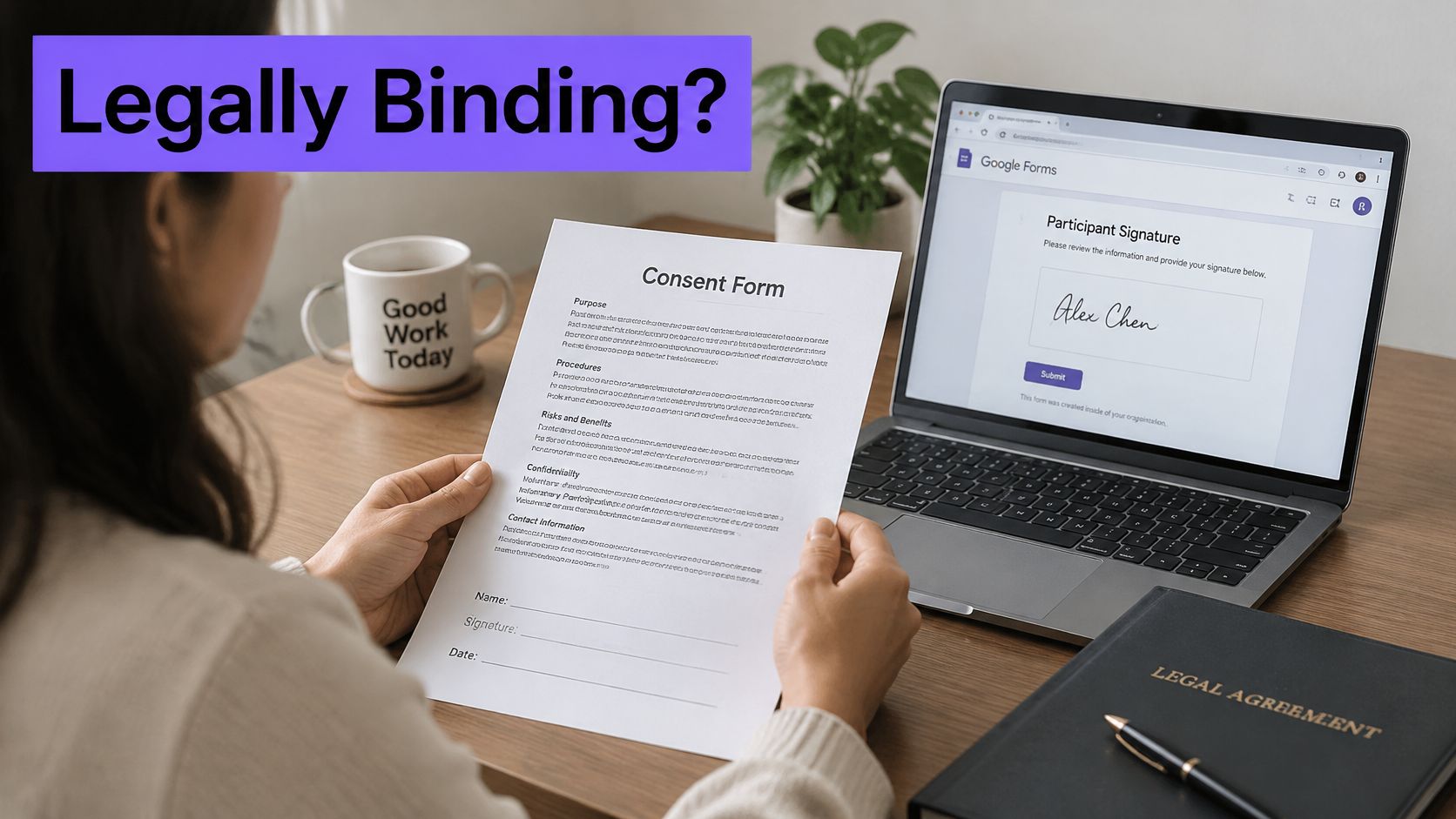
Electronic doesn't mean invalid, but it also doesn't mean automatically enforceable. The photo below captures the practical shift. The paper in hand matters less than the evidence behind the electronic record.
In the US, the Uniform Electronic Transactions Act (UETA) from 1999 provided a model state law recognizing electronic records and signatures adopted with intent to sign. The federal ESIGN Act, signed 30 June 2000, confirmed that signatures generally can't be denied legal effect solely because they're electronic.
In the EU, the European Commission eSignature FAQ explains that eIDAS distinguishes simple, advanced, and qualified signatures, and only a qualified electronic signature is explicitly given the same legal effect as a handwritten signature throughout the EU. A simpler signature still can't be dismissed only for being electronic. eIDAS became fully applicable on 1 July 2016.
The short video below is a useful pause point before you match method to risk.
Courts and counterparties look for the same practical evidence:
- Intent to sign: Clear language showing the act was signing, not just submitting.
- Signer identity: Name, email, and authentication proportionate to the risk.
- Consent and review: Disclosure, consent to electronic records, and a chance to review the document.
- Retained record: Timestamps, an unaltered audit history, and retention and export procedures.
A field trip acknowledgment can use a simple signature. An employment agreement or patient authorization needs the add-on, a full audit trail, and assurance matched to the transaction. This isn't legal advice. Read the e-signature legality guide and the jurisdiction legality overview, and ask counsel for regulated or cross-border agreements.
Real Workflows for School, Clinic and Office Forms
Say a school sends permission slips for a field trip. The form needs student details, a guardian signature, and a date. If the student also accepts a behavior code, add a second signature field for the student rather than cramming both names into one response.
Event waivers for minors follow the same pattern. Put the guardian's details and event date in required fields, then place clear consent text directly above the signature. For a whole class, use bulk sending for repeated recipient groups instead of forwarding one link and losing track of who's outstanding.
Client intake needs a tighter identity match. Clinics, agencies, and consultants should require a legal name that matches the record on file, plus email, date, and signature. HHS guidance on HIPAA authorizations states HIPAA authorizations may be obtained electronically provided the signature is a valid electronic signature under relevant laws and regulations. A plain Google Form alone doesn't make a practice HIPAA compliant.
Employee forms carry the highest risk in this group. BoloSign is used for offer letters, NDAs and non-competes, employee handbooks, and I-9 verification forms. Don't treat a form signature alone as completing Form I-9, which has its own examination and electronic rules, so check current DHS requirements first.
The same structure transfers well. Real estate teams collect purchase approvals and disclosure acknowledgments, logistics teams collect delivery confirmations and driver releases, staffing teams collect candidate onboarding packs, and professional services firms collect engagement letters. Admins who already manage operational forms in Google will recognize the pattern in this purchase requisition workflow example.
Design for access from the start. Screen-reader and keyboard users need clear labels and a non-drawing alternative, and ID checks or drawing-only pads can exclude people with poor connectivity or older phones.
Limits, Pricing and Plan Fit
Plan around the limits first. The add-on works inside Google Forms, so it doesn't turn every Doc or spreadsheet into a signing workflow. Respondents need a device where they can draw or type, and you still need accessible labels, a non-drawing option, and sensible retention controls.
A plain form also doesn't satisfy healthcare safeguards by itself. If the record contains sensitive data, your sharing settings, retention period, and vendor terms matter as much as the signature box.
If you're comparing the cost of staying in Google's ecosystem, Google Forms pricing explained by Formbricks is a helpful baseline before you add a signing layer.
Plan Options for Google Forms Signature Collection
| Plan | Price | Signature capacity | Best fit |
|---|---|---|---|
| Free Plan | Free | 5 form submissions, 2 PDFs, 5 signature forms | Testing one form |
| Freelancer | $10 per month, billed annually | 100 form signatures per month | Solo admins with one or two forms |
| Team | $49 per month, billed annually | 500 form signatures per month | Schools, clinics and HR teams sharing forms |
The Freelancer plan costs $10 per month, billed annually, and includes 100 form signatures per month. The Team plan costs $49 per month, billed annually, and includes 500 form signatures per month. The Free Plan also allows 2 template responses, which is enough to test your field order before a wider launch.
Confirm current details on the pricing page before you budget. We offer a free trial, and a first document can be sent for e-signature in under 2 minutes.
Frequently Asked Questions and Next Step
Does Google Forms have a signature option? No. There is no native signature question type, so the practical route is an eSignature for Google Forms add-on that places signature, date, initial and custom fields on the PDF.
Is a Google Forms signature legally binding? It can be under ESIGN and UETA in the US and eIDAS in the EU when the workflow shows intent, consent, identity evidence and a retained record. Match the method to the risk: a typed name may suit low-stakes sign-off, while a challenged document needs a signed PDF with an audit trail.
Can people sign on a phone? Yes. Documents sent for signing can be completed on a phone without an app download, printing or scanning, but still test the field order on a small screen.
Where is the signed PDF stored? Signed documents stay in the BoloSign account and can auto-save to Google Drive, Dropbox or OneDrive.
Can one form collect two signatures? Yes. Add fields for each recipient role, such as student and parent or reporter and witness.
Install the add-on to test one form on the Free Plan, or start the free trial to run a team workflow with templates and audit trails.
Closer Innovation Labs Corp. builds BoloSign for schools, clinics, HR teams, and growing businesses that need to create, send, and sign PDFs and forms without stitching together disconnected tools. Install the Google Forms add-on, test it on one permission slip or intake form, and visit Closer Innovation Labs Corp. to start your trial and turn form responses into auditable signed PDFs.

Paresh Deshmukh
Co-Founder, BoloForms
28 Oct, 2026
Take a Look at Our Featured Articles
These articles will guide you on how to simplify office work, boost your efficiency, and concentrate on expanding your business.